How to Add and Remove Bots in CS2 Practice Matches
How to Add and Remove Bots in CS2 Practice Matches
Open the console in a CS2 practice match and use bot_add to add a bot or bot_kick to remove them all. You can also pick a side and difficulty for each new bot, keep the map empty for smoke practice, or freeze a defender to practice a peek. Load your favorite map and try the commands on your config.
Enable the Developer Console for a Practice Match
In Settings > Game, set Enable Developer Console to Yes. Open Play > Practice, pick a mode and map, then join a side. Press the backtick key (just below Esc on a US keyboard), type a command, and press Enter.
Match type
Bot controls
Local Practice
You control the bots.
Community server
You need server permissions to manage bots.
Valve matchmaking
Only the server controls the bots.
In Practice, you can add bots, kick them, and set their difficulty with cheats off. To place an existing bot where you’re aiming, enter sv_cheats 1, then bot_place.
Add Bots to the T or CT Side
Each command adds one bot. Choose the one that fits your setup.
bot_add lets the server pick an available side.
bot_add_t adds a bot to the T side.
bot_add_ct adds a bot to the CT side.
Repeat the command to fill more open slots. For an opening duel on Mirage, join T and use bot_add_ct to add a defender. Have a friend follow you out of A ramp to practice trading the kill if the defender wins the first fight.
Adjust Team Limits for Uneven Matches
For a one-versus-three retake, enter mp_limitteams 0 and mp_autoteambalance 0 before adding opponents. The first command allows a larger gap in team sizes. The second turns off automatic balancing so the server leaves your teams as you set them.
To play the retake as the lone CT, clear the starting bots with bot_kick, then run bot_add_t three times. Check the scoreboard for one CT and three Ts. If the last bot fails to join, check for an open player slot. Disabling team limits still leaves the server’s capacity in place.
Choose a Difficulty Before Adding Bots
Set the difficulty before adding bots. Existing bots keep their current level.
bot_difficulty 0 selects Easy.
bot_difficulty 1 selects Normal.
bot_difficulty 2 selects Hard.
bot_difficulty 3 selects Expert.
For a duel against an Expert defender, join T on an empty map, enter bot_difficulty 3, then run bot_add_ct. If bots are already in the match and you want them all at the same level, use bot_kick first, set the difficulty, and add the bots you need.
Kick All Bots or Remove Them by Team or Name
Enter bot_kick with no arguments to remove every bot and leave the human players connected. For a team-specific change, bot_kick t removes all Terrorist bots, while bot_kick ct removes all Counter-Terrorist bots. That’s handy when a friend takes over defense and you want to keep the attackers for another round.
To remove just one bot, check its name on the scoreboard. If the bot is called Allen, enter bot_kick "Allen". The rest of the roster stays available for the next round.
Keep the Map Empty With bot_quota 0
For an uninterrupted smoke session, run bot_kick, then bot_quota 0. The kick clears the current roster. The quota sets the target population to zero. If bots return after a map change, check the quota again. A game mode or server plugin can reapply its own settings when the next map loads.
The quota also explains why a bot sometimes disappears when a friend joins. In bot_quota_modefill, the command description says the server will “adjust bots to keep N players in the game.” With bot_quota 10, two humans leave room for eight bots. In bot_quota_mode normal, that same value targets ten bots, subject to available slots.
Place a Stationary Bot for Crosshair Practice
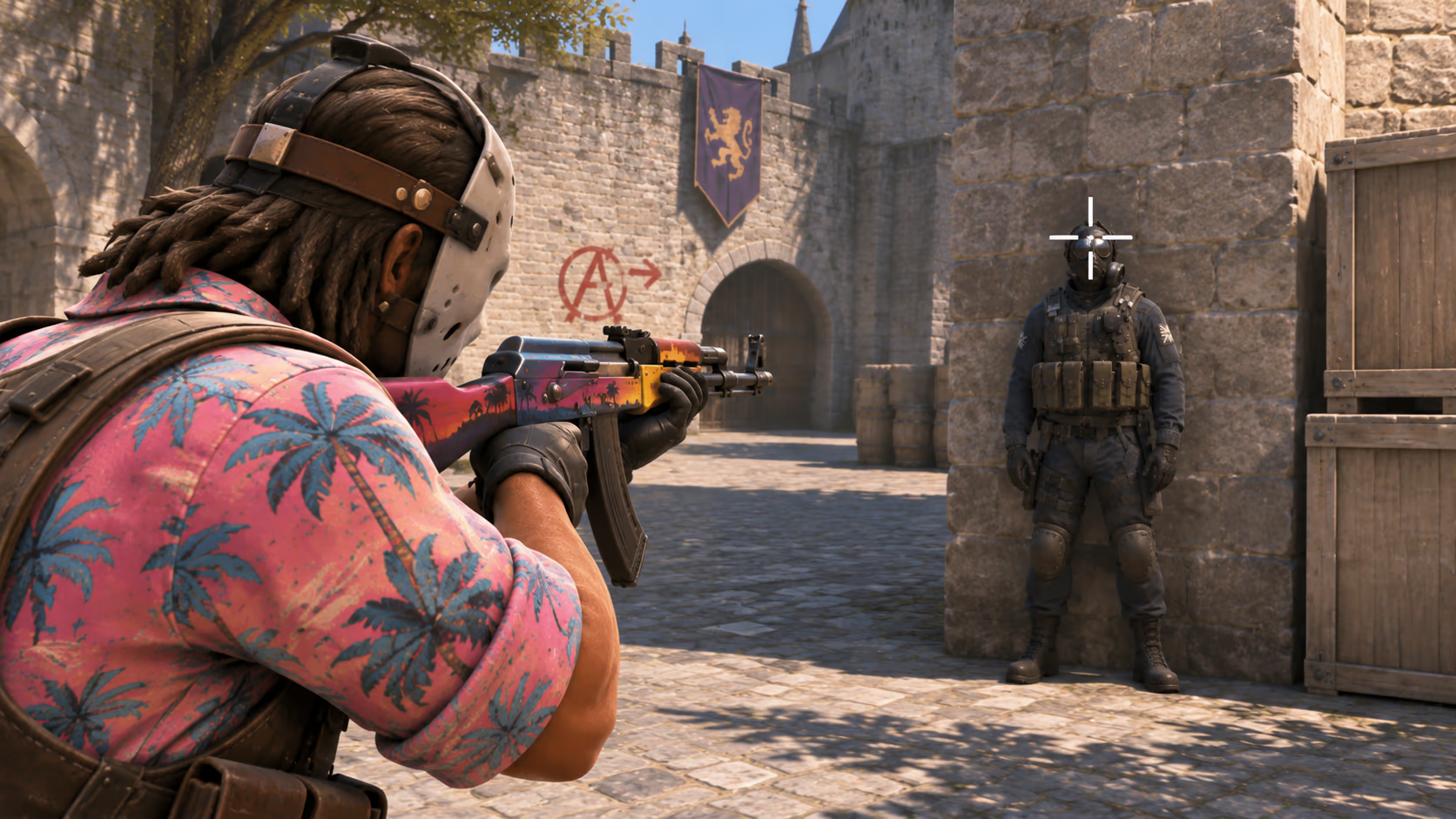
Join T on Mirage and set up one stationary CT to practice your peek from A ramp.
Step
Console commands
Clear the map and add one defender
bot_kick, then bot_add_ct
Enable practice cheats and freeze the bot
sv_cheats 1, then bot_stop 1
Move the bot beside ticket booth
Aim at the ground where its feet should be, then enter bot_place.
Return to A ramp and peek with your crosshair at head height. If you have to flick up to hit the shot, start with your crosshair a little higher and repeat the peek. Use bot_crouch 1 to try the same angle against a crouched CT. When you’re ready for a live duel, enter bot_crouch 0 to release the crouch, then bot_stop 0 to let the defender move again.
Lead content creator at CSSpot, who transitioned from a semi-pro career — highlighted by multiple ESEA Entry runs — into the forefront of esports journalism.
In his work, FPS- combines his practical experience as a competitor with a clear and practical approach to journalism.
Our choice
Chicken.GG
9.3/10
4 games
Cards
Cryptocurrency
Gift Cards
+2
CS2SKIN
9.5/10
7 games
Cryptocurrency
Cards
ApplePay
+2
CSSPOT
+100% to Deposit
until 21.12.2026
Caser
9.1/10
5 games
SBP
Cryptocurrency
GG.SKIN
+2
FAQ
How do I add bots to a specific team in CS2?
In a local Practice match, open the developer console and enter bot_add_t for a Terrorist or bot_add_ct for a Counter-Terrorist. Each command adds one bot. Use bot_add if either team is fine.
How do I remove all bots in CS2 and stop them from coming back?
Enter bot_kick to remove all current bots, then bot_quota 0 to keep the map empty. Human players stay connected. If bots return after a map change, enter bot_quota 0 again.
How do I change bot difficulty in CS2?
Enter bot_difficulty followed by 0 for Easy, 1 for Normal, 2 for Hard, or 3 for Expert. The setting applies to bots you add afterward. To change every bot’s difficulty, run bot_kick, set the level, then add the bots again.