CS2 Screen Shake: Settings, Commands, and Matchmaking Limits
CS2 Screen Shake: Settings, Commands, and Matchmaking Limits
You can make CS2 less distracting, but you cannot turn off all screen shake in matchmaking. This guide covers crosshair and weapon settings, Valve’s camera changes, outdated commands, and options limited to practice or replays. Find out what each setting does and try the changes that work in your matches. For pro players settings you can check this page.
Camera Recoil and Aim Punch in Matchmaking
Several effects can overlap during a firefight, but each moves something different:
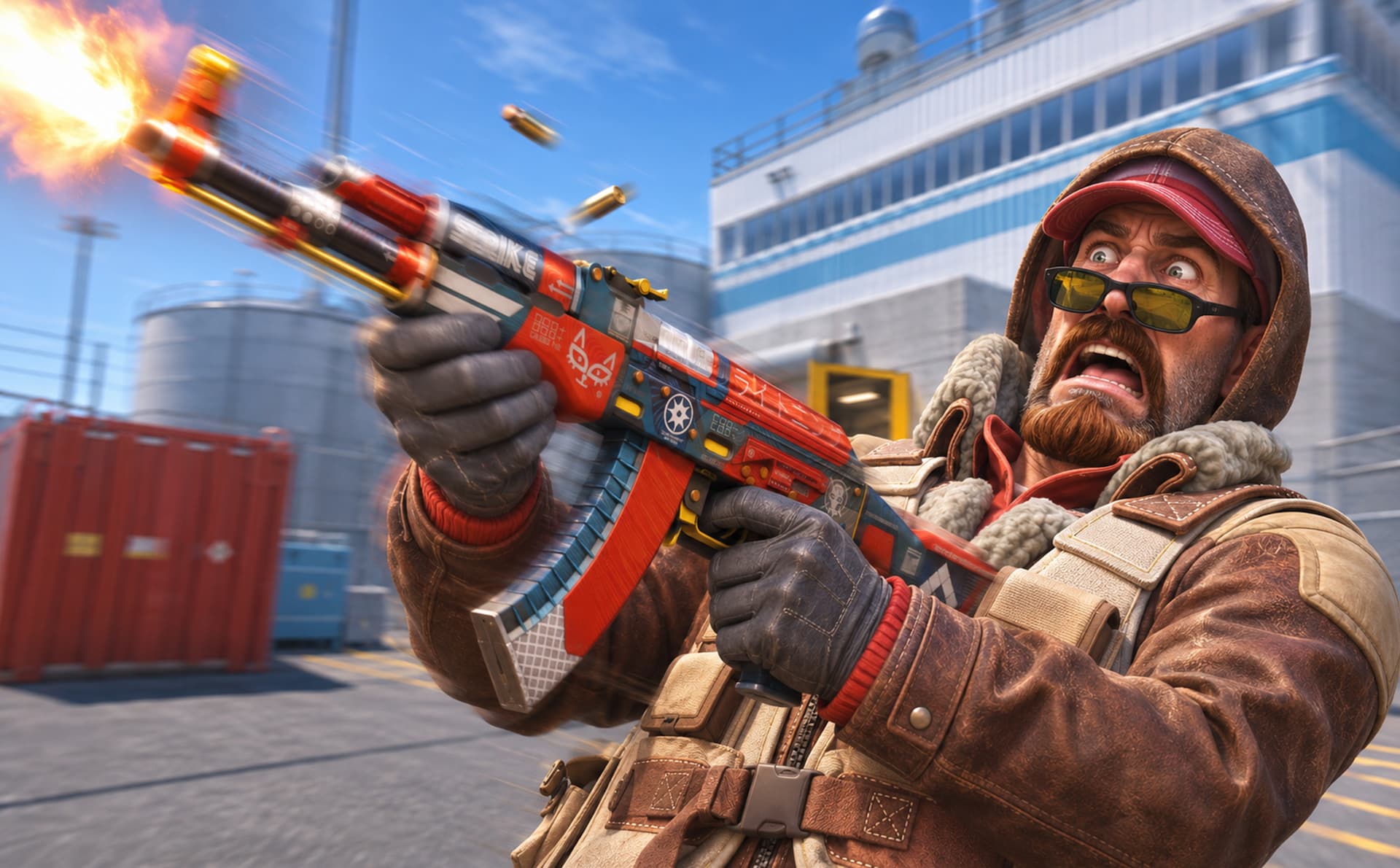
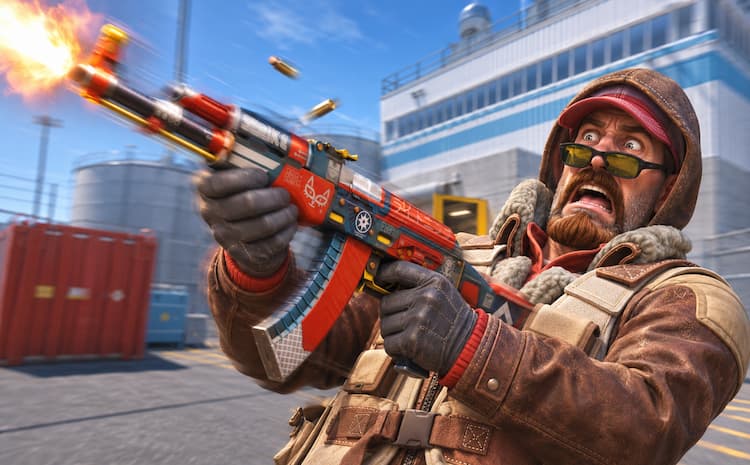
Camera recoil: your view moves as you fire.
Incoming aim punch: your view reacts when you take damage.
Weapon animations: the gun and hands move while running or shooting.
Follow Recoil: the crosshair moves to reflect predicted recoil.
Disabling Follow Recoil keeps the crosshair steady, not the camera. Lowering your weapon’s position can clear some space on screen, but it does not change where bullets go.
Premier and Competitive also block cheat-protected server changes. A command that affects camera movement in local practice is not a matchmaking fix.
Recoil Camera Changes in the April 2026 Update
Valve addressed recoil camera movement in its April 21, 2026, update: “Adjusted camera motion due to recoil to match CS:GO more closely.”
The note stated that bullet trajectories should continue to follow CS2 behavior.
Valve also changed how incoming aim punch appears. Players receive the full camera motion from external sources, including getting shot, regardless of network latency.
Settings That Reduce Visual Distractions
Enable the developer console through Settings > Game > Enable Developer Console, then open it with your assigned key, usually ~. Enter each command on its own line.
Before making changes, record your existing values. Typing a variable’s name without a replacement value lets you inspect its current setting and makes restoration easier.
Disable Follow Recoil and Use a Static Crosshair
For a crosshair that does not follow recoil or expand with movement and firing, enter:
cl_crosshair_recoil false
cl_crosshairstyle 4
The first command disables Follow Recoil. The second selects the static crosshair style. You can also turn Follow Recoil off through the crosshair settings menu.
The crosshair becomes steadier, yet the recoil stays the same. To re-enable Follow Recoil, enter:
cl_crosshair_recoil true
Adjust Weapon Position with Viewmodel Settings
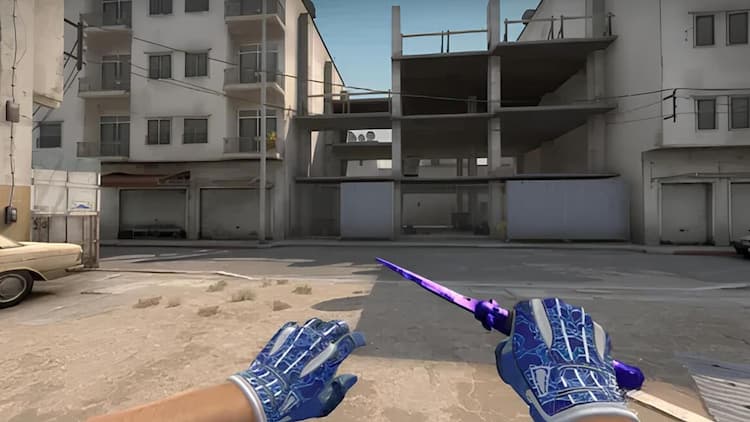
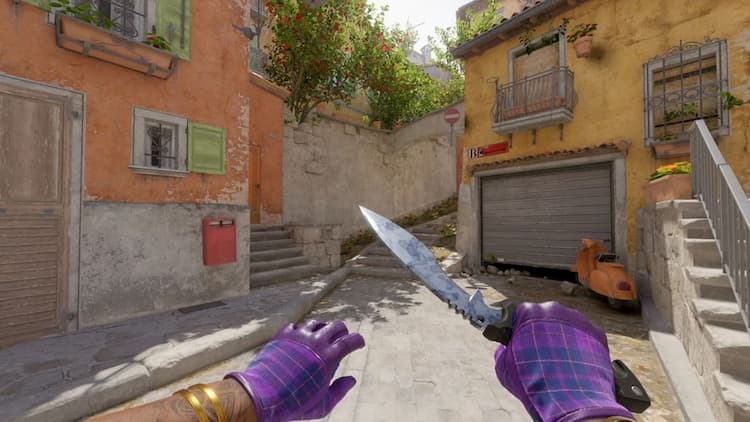
The viewmodel is the weapon and hands displayed in first person. Repositioning it can make the gun less distracting without changing the camera’s recoil behavior.
Try this optional starting point:
viewmodel_fov 68
viewmodel_offset_x 2.5
viewmodel_offset_y 0
viewmodel_offset_z -2
viewmodel_fov controls the viewmodel’s field of view. The three offsets adjust its horizontal, forward/backward, and vertical placement.
Outdated Bob and Recoil Commands to Skip
The command checks documented in the supplied November 2026 research did not find several variables commonly recommended in older guides. These should not form the basis of a current CS2 screen-shake configuration:
Command or variable
Common recommendation to skip
cl_usenewbob
cl_usenewbob 0
cl_bob_lower_amt
Changing weapon lowering through this variable
cl_bobamt_lat, cl_bobamt_vert
Reducing sideways or vertical bob
cl_bobcycle
Adjusting the bob cycle
viewmodel_recoil
viewmodel_recoil 0
view_recoil_tracking
view_recoil_tracking 0
weapon_recoil_view_punch_extra
Setting the value to 0
An “Unknown command” response is an evidence that the value is absent from the installed build, adding it to an autoexec or your config will not make it functional.
Irregular picture jumps also deserve separate attention. Enable continuous performance and network telemetry with:
cl_hud_telemetry_frametime_show 2
cl_hud_telemetry_net_misdelivery_show 2
Testing View Punch Decay in Local Practice
view_punch_decay exists in the extracted game data, with a default value of 18. It is marked cheat and replicated, placing it outside ordinary client-side matchmaking adjustments.
On a local practice server you control, enter:
sv_cheats 1
view_punch_decay 999
The variable governs view-punch decay. The value 999 is an experimental comparison setting, not an official recommendation or proof that every source of camera motion disappears.
Demo Stabilization Is Separate from Live Gameplay
A steady replay is not proof of a shake-free live configuration. CS2 includes demo-specific camera controls, including cl_demo_steadycam_enable, which concerns stabilization during demo playback.
The supplied command ris development-only. Its presence in extracted data should not be treated as a guarantee that an ordinary client exposes it as a usable setting.
Lead content creator at CSSpot, that transitioned from a semi-pro career — highlighted by multiple ESEA Entry runs — into the forefront of esports journalism.
In his work, FPS- combines his practical experience as a competitor with a clear and practical approach to journalism.
FAQ
Can you turn off screen shake in CS2 matchmaking?
No, you cannot fully disable screen shake in CS2 matchmaking. Camera recoil and incoming aim punch remain active. A static crosshair, disabled Follow Recoil, and adjusted viewmodel settings can reduce visual distractions, but they do not remove camera movement or change bullet trajectories.
What settings help reduce visual distractions from CS2 screen shake?
Use cl_crosshair_recoil false to disable Follow Recoil and cl_crosshairstyle 4 for a static crosshair. Adjusting viewmodel position can also make your weapon less distracting. These settings improve visual clarity without disabling camera recoil or changing weapon accuracy.
Why do CS2 screen shake commands show “Unknown command”?
An “Unknown command” response means the variable is unavailable in your installed CS2 build. Older guides may recommend unsupported commands such as cl_usenewbob or viewmodel_recoil. Adding an unavailable command to your autoexec will not make it work.