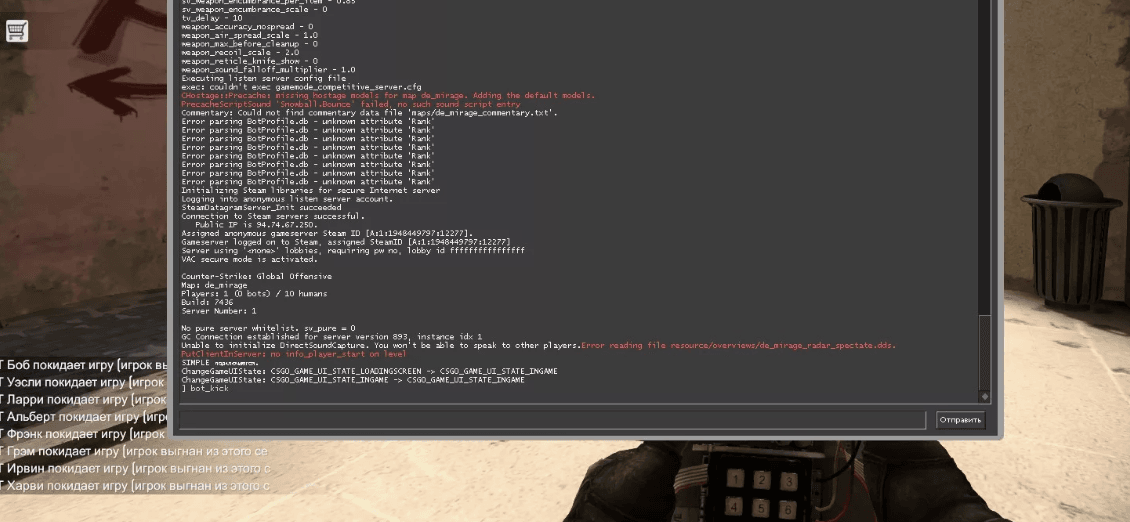
The console in CS2 is one of the key configuration tools used by both beginners and CS2 pro players. It allows you to customize crosshairs, load CS2 configs, optimize FPS, and use CS2 binds. Even players like kyousuke frequently use console commands to fine-tune their gameplay style.
To enable the console, follow these steps:
- Open the game and go to Settings.
- Go to the "Game" tab.
- Find the "Enable Developer Console (~)" option and set it to "Yes".
- Now press the "~" key (the “ё” key on the Russian keyboard) — the console will open.
If the console doesn’t work, try:
- Switching the keyboard input language to English.
- Rebinding the console key in the file (found in the folder).
- Checking launch options in Steam: Right-click CS2 → Properties → Set Launch Options → add .
The console helps you adjust not only graphics but also essential gameplay elements like CS2 crosshairs and match controls. If you're planning not only CS2 case openings but also serious competitive play, this tool is a must-have.