Crosshair customization in CS2 via console: tailor it to your style
Crosshair customization in CS2 via console: tailor it to your style
In CS2, the crosshair isn't just a dot on the screen — it’s a crucial tool that directly affects your aim and overall gameplay experience. While the game offers a user-friendly settings interface, many professional players cs2 still prefer manual crosshair cs2 adjustment via the console. This approach gives you more flexibility and helps you achieve the perfect result.
How to change crosshair in CS2
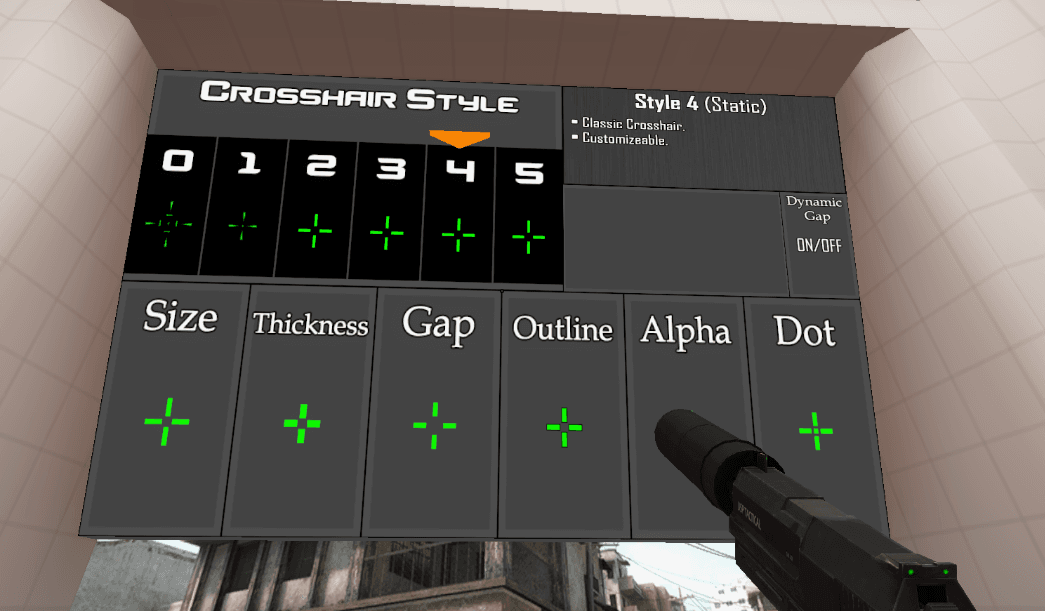
Starting with the crosshair style:
cl_crosshairstyle 0
— default dynamic
cl_crosshairstyle 1
— default static
cl_crosshairstyle 2–5
— classic styles with various dynamics and looks
Dynamic styles expand when firing, jumping, or moving. Static ones stay the same no matter what.
Some legacy CS:GO commands are now obsolete, such as:
cl_crosshairgap_useweaponvalue
cl_crosshairscale
Quick tip:
If you don’t want to input every command manually, use special workshop maps (like aim training maps, but for crosshairs) or online crosshair generators. Then just paste the config cs2 into the console — quick, efficient, and fully customizable.
Lead content creator at CSSpot, that transitioned from a decorated semi-pro career — highlighted by multiple ESEA Advanced playoff runs — into the forefront of esports journalism.
In his work, le3nzy combines his practical experience as a competitor with a clear and practical approach to journalism.