
Top CS2 Case Opening Sites

HyperDrop
6 games
ApplePay
MIR
SBP
+3

Caseway
4 games
Cards
Cryptocurrency
Mastercard
+4

Skin.Club
4 games
Cards
Cryptocurrency
Mastercard

We continue optimizing your
in CS2. In this section, we’ll go over commands and CS2 config tweaks that impact shooting precision, radar performance, and CS2 skin appearance in first-person view.These settings ensure smooth data exchange with 128-tick servers. You can adjust
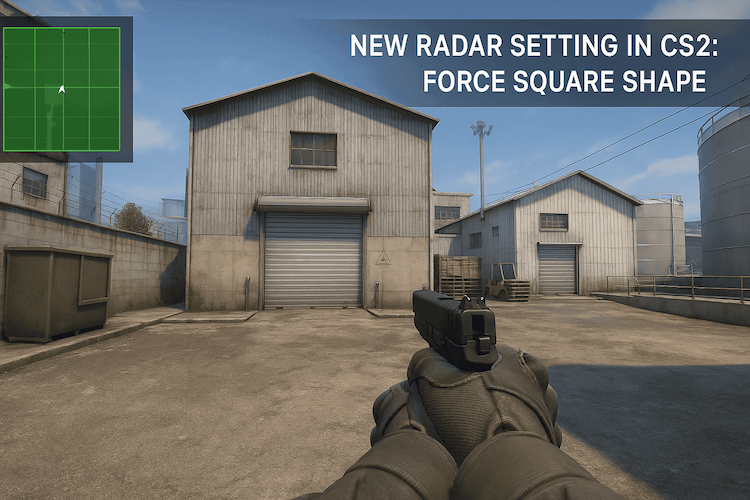
depending on your PC — typically between 240 and 999.Now, let’s configure the radar. To see the whole map and track enemy movements more efficiently, reduce the radar scale. In-game, go to Settings → Game → Radar and set:
This allows you to view more of the map and react faster during matches.
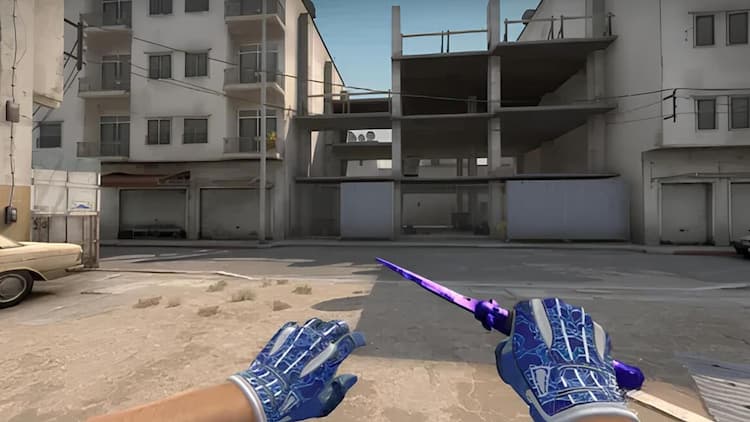
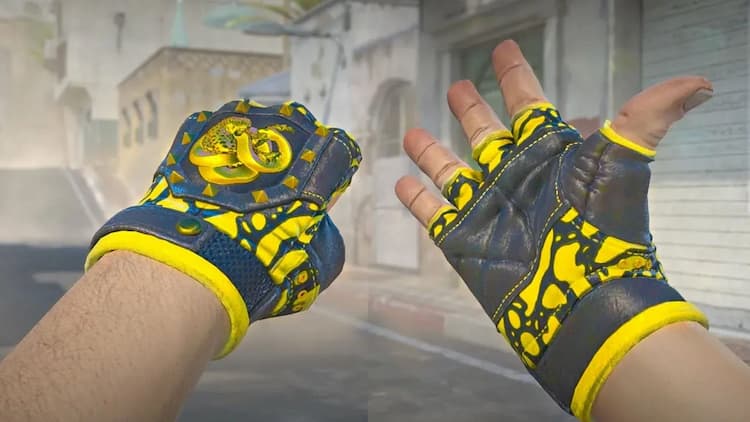
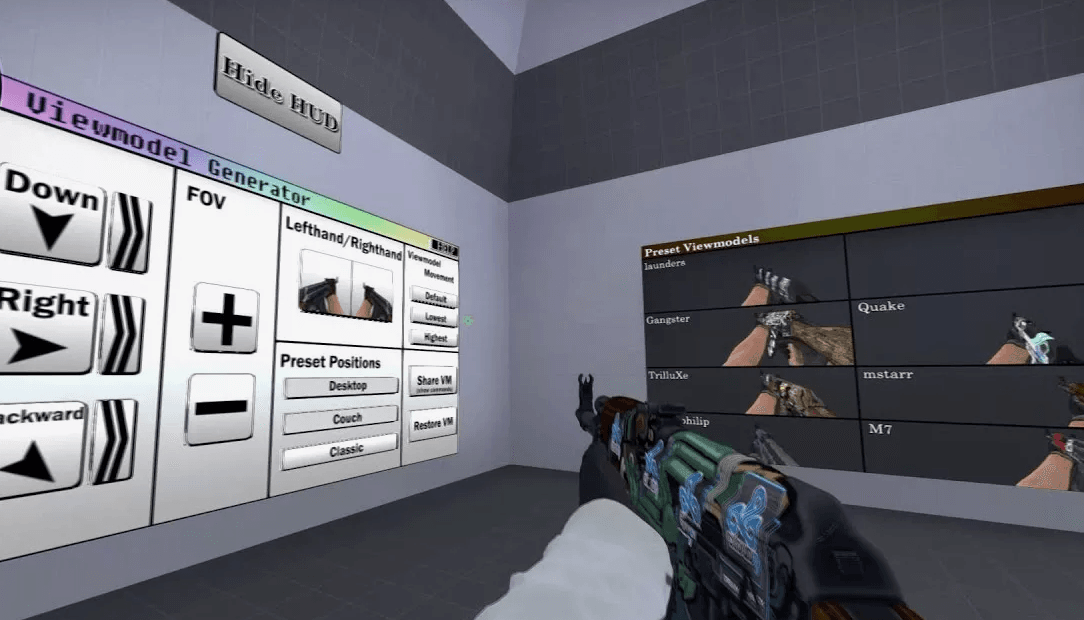
Next up: the cs2 viewmodel — how your hands and weapons are displayed. These settings improve visibility and gameplay comfort:
adjusts weapon zoom control positioning on screen offers predefined layouts (1 = default, 2 = wide view, 3 = classic CS 1.6 style)These changes clean up the interface, expand your view, and enhance the experience — especially when aiming with CS2 crosshairs. At this point, your
is far more balanced.