Best CS2 Case Opening Sites

HyperDrop
6 games
ApplePay
MIR
SBP
+3

TopSkin
4 games
Cards
MIR
SBP

BuySkins
6 games
ApplePay
Cards
SBP
+2

Bloodycase
6 games
Cards
SBP
MIR
+2

UnboxCS
6 games
ApplePay
Cards
MIR
+3

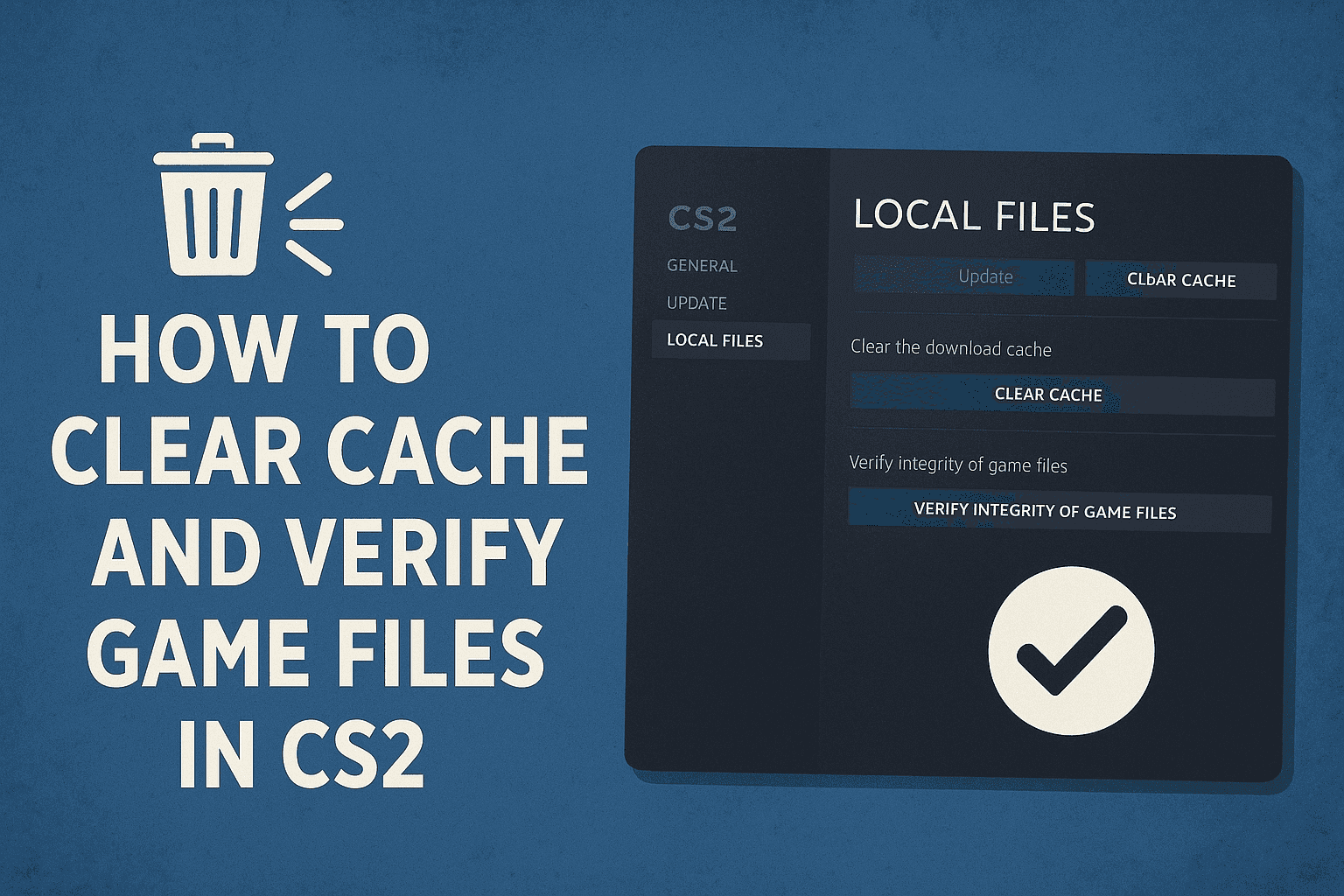
If CS2 starts acting up — bugs appear, the game crashes, or it runs with unusual instability (for example, CS2 skins display incorrectly or you experience lags during CS2 case openings) — don’t rush to reinstall the game. Corrupted or missing files could be the real problem. Before doing anything drastic, it’s worth verifying the integrity of the game files via Steam.
Steam will now scan your CS2 installation. The process might take a few minutes depending on your system. Once finished, it will automatically redownload any corrupted or missing files.
Not at all. If Steam says some files couldn’t be verified, it’s usually just your local settings — those don’t need to be replaced. They contain your personal configs and don’t affect CS2's performance.
Clearing the cache helps if the game lags, loads maps slowly, or shows visual glitches. After verifying files and restarting your PC, CS2 often runs noticeably smoother.