- Home
- Binds
Counter-Strike 2 Binds
Counter-Strike 2 Binds: Faster Controls in One Key
CS2 binds put a large number of inputs behind one key, so actions happen on command in a Counter Strike match. A bind can live on Tab for the scoreboard, on CapsLock for a quick drop, or on a mouse button for ping when chaos hits. CS2 was released after CSGO, but the basic bind mechanic stayed the same.
What a “bind” means in CS2
A bind is a line that links a bind key to a console command. The format looks like:
Which is the default way to fire a weapon. Key binds also exist in the Settings controls menu and its bind tab, but the developer console is where detailed bind commands are typed.
Most binds end up in a cfg file, because CS2 stores settings as text. If a line is wrong, the console prints feedback, and that sign makes fixes quicker.
Why Binds Make You Faster and More Consistent
Binds make you quicker because they cut out extra steps, so your hands stay in the best position for fights. When your fingers leave their usual keys, your aim can wobble and your timing can slip.
- Keep your left hand on W E R and shift for movement, and use your right hand for the mouse so your crosshair stays steady.
- Use a buy bind to rapidly buy weapons at the start, then return to aiming instead of clicking menus.
- Pick bind key spots that feel natural, because consistent presses reduce small mistakes during a clutch.
With practice, the same key press produces the same action every time, even when the round feels stressful. That steadiness helps you focus on shots, spacing, and surviving the next trade.
The basics before you start (console + settings)
Enable the developer console: open Settings, click the Game tab, and set “Enable Developer Console (~)” to Yes. Press ~ to open the console, and it will drop down; Steam launch options like -console can also help.
Use the menu for simple changes, then use the console for special commands. Test everything in game first, because some servers ignore restricted scripts.
How to create a key bind step by step
While creating your own bind each command should look like this:
Quotes matter for key names like DEL, End, PgUp, and PgDn, so check spelling when you paste a line. After it is created, tap the key twice and watch the action. A tool helpful trick is keeping a small note file with each new bind before it goes into autoexec.
Quick example: one key, one action
You can create a bind for CapsLock to drop the current weapon like this:
The key sits close to the left hand, so aim stays stable while the right hand tracks targets. A chat bind also works well with say_team, letting players share info without stopping.
Adding extra options (like “+” and “-” commands)
In CS2, some actions are meant to be held down, not just tapped. Those use a “+” command when you press the key, and a matching “-” command when you release it.
| What it does | How it works | Simple CS2 example |
|---|---|---|
| Hold action | “+” starts on press, “-” stops on release | +jump starts jumping; -jump ends it |
| Jump on mouse wheel | Repeats +jump when you scroll | bind "mwheelup" "+jump" and bind "mwheeldown" "+jump" |
| Change a setting in steps | Moves a value up or down within limits | incrementvar volume 0 1 0.25 to step sound level |
For quick switches, players also use toggle to flip one setting between states, like changing crosshair values (for example, cl_crosshairsize) with one key. If commands get too long, an alias works like a short name for a longer script, which keeps the cfg easier to read.
Where to save binds (autoexec) so they don’t reset
Binds are safer in files than in memory. CS2 configs are located in the Steam user folder path ending with 730\local\cfg\, where config.cfg sits. An autoexec file loads your custom cfg every launch, and many players add +exec autoexec.cfg in Steam to make it consistent.
Making an autoexec file the easy way
An autoexec file loads your binds every time CS2 starts, so they do not reset. It is just a text cfg file that the game can run with one command.
- Open your CS2 cfg folder and create a file named autoexec.cfg.
- Paste your bind lines inside it, then save. On Windows, check that it did not become autoexec.cfg.txt.
- Add the first command in your Steam launch options, start the game.
Then test it by typing the second one in the developer console.
After you run it, watch the console for errors, because a missing quote or one wrong character can stop a bind key from working. If you use a bind generator tool, still read every line before saving, and keep a backup copy so a reinstall does not wipe your setup.
Fixing common bind problems
Most CS2 bind problems come from three things: the key name is typed wrong, two binds are fighting for the same key, or the action is not allowed on a server. Keys like DEL, End, and Page Up or Page Down often need the game’s exact key token, not the word printed on your keyboard, so use a key-code list when in doubt.
Conflicts are common when O or P gets reused, because the newest bind replaces the older one. Default keys matter too, since Y U are used for chat and Tab opens the scoreboard, so changing them can feel confusing during a round. Fix issues by changing one bind, testing it in game for a few rounds, then adjusting again if needed.
“My bind doesn’t work” checklist
Run this checklist, then fix only one item at a time.
- Confirm the developer console opens with ~.
- Verify key spelling, especially DEL, End, PgUp, PgDn.
- Check conflicts with W E R, Shift, and Tab.
- Reload your autoexec file with exec autoexec.cfg and read the console output.
After that, retest in an offline match, then on a server. The slow approach prevents stacking mistakes.
How to remove or reset a bind safely
Use unbind "KEY" to clear a bind, then rebuild only what you need. To restore a default, bind it back directly, like bind "mouse1" "+attack".
Avoid unbindall unless a full reset is planned, because it wipes every key bind. If a cfg is messy, move the file aside, let CS2 rebuild, then paste back the trusted lines.
Fair play: what’s allowed and what to avoid
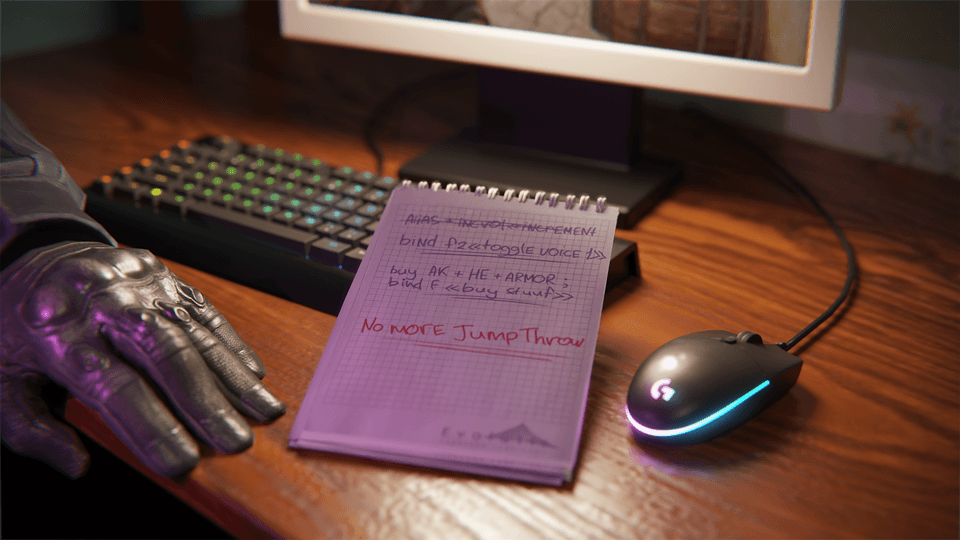
Valve draws a line against automation. On official servers, binds that automate multiple movement and or attack actions from a single input can be blocked, and players suspected of automation may be kicked. A release-notes summary also says binds with more than one movement and or attack action will no longer work, including jump-throw and null-binds.
Safe binds stay in the comfort lane, like buy helpers, radar changes, volume steps, and communication. A practical example is:
It will automatically buy the selected setup at the push of a button.
The table below has more examples of different binds.
| Goal | Example | Outcome |
|---|---|---|
| Consistent jump | bind "mwheelup" "+jump" | Better timing for movement. |
| Quiet focus | bind "x" "incrementvar volume 0 1 0.25" | Quick audio switch while walking. |
| Radar info | bind "o" "incrementvar cl_radar_scale 0 1 0.25" | Fast switch of radar scale. |
| Multi-action input | Scripts chaining movement and attack | Ignored, or a kick on Valve servers. |
A quick switch after an AWP shot can help rhythm, but it does not change fire rate, so keep expectations realistic. When case-opening sites come up between matches, CSSpot rating is a clean reference, then it is easier to return with steady FPS and a stable cfg.